macOS Utility
Paste where you can't paste.
TypeClipboard (Type Clipboard) replays your clipboard as live keyboard input so text works in VNC, RDP, Citrix, virtual consoles, and secure fields.
- Open source on GitHub
- MIT licensed
- No account required
- No app telemetry
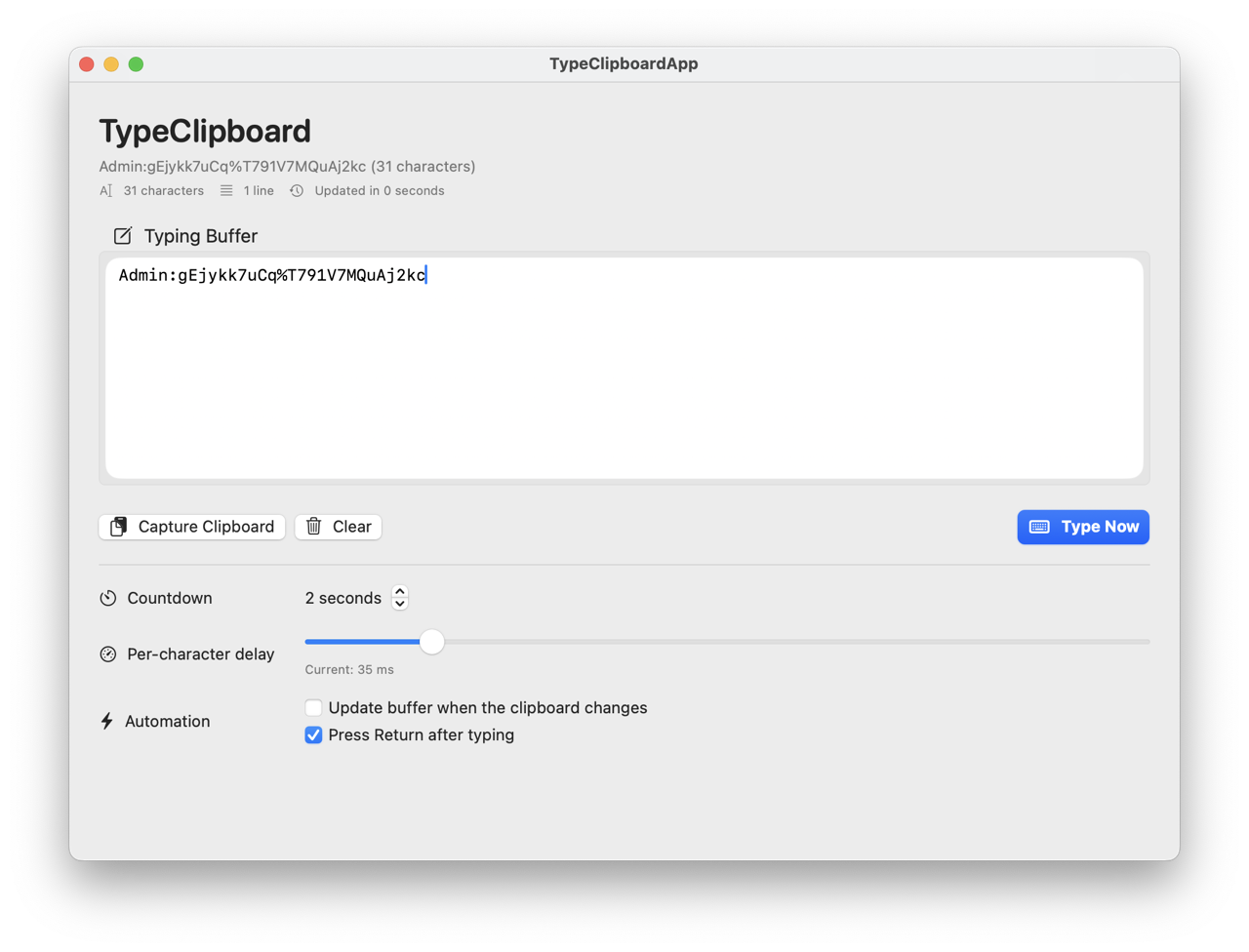
Designed for Remote Workflows
Everything you need to input text into stubborn applications.
Clipboard Capture
Capture clipboard content instantly into an editable buffer.
Adjustable Delay
Control typing speed and countdown to match target latency.
Live Typing
Simulate real keystrokes to bypass paste restrictions.
Secure Input
Uses macOS Accessibility permissions for reliable input delivery.
Remote Ready
Built for VNC, RDP, Citrix, and virtual machine consoles.
Customizable
Toggle auto-capture, trailing Return key, and timing controls.
Use Cases
TypeClipboard is built for workflows where clipboard paste is blocked, unreliable, or missing entirely.
Remote desktops
Fill forms and commands in VNC, RDP, and Citrix sessions that block clipboard paste.
Virtual machine consoles
Send long credentials to BIOS, hypervisor, and console prompts where right-click paste is unavailable.
Secure prompts
Reliably enter one-time codes and long secrets into fields that only accept real keystrokes.
Kiosk and legacy apps
Work with software that disables paste or has inconsistent clipboard support.
How it Works
Three quick steps to type anywhere.
Capture
Copy text to your clipboard and click Capture in TypeClipboard.
Prepare
Set delay and countdown, then focus the destination window.
Type
Click Type Now and let the app send your text as real keystrokes.
Permissions and First Run
TypeClipboard uses macOS Accessibility APIs to generate keystrokes. On first run, you need to grant one permission.
- 1. Launch the app and click Open Settings in the permission banner.
- 2. In Privacy & Security > Accessibility, enable TypeClipboard.
- 3. Restart the app so macOS applies the permission.
What to Expect
- Manual capture and auto-capture options
- Countdown and per-character delay controls
- Escape-to-cancel and optional trailing Return key
Looking for setup details? See the full usage guide in the repository README.
Open setup guideRequirements
TypeClipboard runs locally on macOS and does not require a cloud account. Make sure your environment meets these baseline requirements before first use.
Operating System
macOS 13 Ventura or newer
Permissions
Accessibility permission enabled for TypeClipboard
Distribution
Downloadable prebuilt .app from GitHub Releases
Best Fit
Targets that accept standard keyboard input events
Frequently Asked Questions
Does TypeClipboard work in every secure field?
Most fields that accept normal typing will work. Some hardened prompts block all synthetic input, including accessibility APIs.
How do I avoid typing into the wrong window?
Use the countdown before typing. It gives you time to focus the correct target window before keystrokes start.
Can I tune typing speed for slow remote sessions?
Yes. Increase per-character delay for high-latency connections and lower it when target applications can keep up.
Can I stop typing once it starts?
Yes. Press Escape or click Cancel Typing during countdown or active typing.